Appointment booking for multiple staff: how to organise it
Telofia team · · 12 min read
Appointment booking for multiple staff works when each person has their own calendar, a list of the services they do and logged days off. That way, whoever takes the booking can see who's free for that service. They can handle “anyone's fine” requests fairly and avoid double bookings, whether you use a shared calendar, booking page or receptionist.
Contents
- How does appointment booking for multiple staff work?
- Practical rules that prevent double bookings
- Ready-made template: who does which service, plus a calendar checklist
- Paper diary, shared calendar, online booking page or receptionist: which should you choose?
- What does a missed or double-booked appointment cost you?
- How does an AI receptionist book with the right person?
- Setting up your team's calendars in Telofia
- Try the assistant with the free trial
- Frequently asked questions
How does appointment booking for multiple staff work?
It works on one simple rule: the time slot belongs to the person, not the business. A salon with three hairdressers doesn't have one diary with three slots at 10am. It has three diaries, each with its own 10am slot.
The difference looks small, but it solves most clashes. When everything sits in one shared calendar, nobody knows for sure whether the 10am slot belongs to the first stylist, the second, or whoever grabs it first.
The same goes for a dental practice with two dentists, a garage with three mechanics or an office with several consultants. Each member of staff needs a calendar that shows only their own appointments, their days off and the services they actually provide.
Practical rules that prevent double bookings
A double booking almost always starts with a piece of information that the person taking the booking didn't have. These four rules cover the most common slip-ups, whatever tool you use:
- One calendar per person — every member of staff has their own calendar, and every booking goes into a specific person's calendar, never into a generic slot.
- Who does which service — draw up a simple list: who does colour, who does implants, who handles diagnostics. That way nobody books a service with someone who doesn't offer it.
- Days off and holidays recorded — a day off goes into that person's calendar as a block, not just into the team's memory. Bank holidays when the business is closed go into every calendar.
- Real duration of each service — a 30-minute cut and a 2-hour colour don't take up the same space. If the calendar doesn't know the duration, the overlap shows up halfway through the afternoon.
Some everyday situations can throw even a well-built schedule off. The fix is always the same: record it in a specific person's calendar instead of falling back on a generic one.
- Squeeze-ins and walk-ins — before you start the service, add the client to the calendar of the person who'll see them. If you often take squeeze-ins, reserve a fixed block in the calendar of whoever usually handles them, say 30 minutes at the end of the morning. If nobody has used it by the day before, open it up for booking.
- Gaps between clients — lunch and breaks go in as recurring events in each person's calendar. Time for cleaning, preparation or changeover between clients goes inside the service duration, so nobody has to remember to leave a gap.
- Shared room or equipment — when a service needs both a person and a resource, such as a dental chair or a garage ramp, the simplest approach is to assign the resource by shift. For example, dentist A uses chair 1 in the morning and dentist B in the afternoon. That way the person's calendar already blocks the resource.
- Resource with no fixed owner — if several people need the same piece of equipment, create a helper calendar named after it, for example “Ramp 1”, for reference only. The booking still goes into the mechanic's calendar, and whoever takes the booking checks both calendars before confirming.
Then there's a common request on the phone: “I don't mind, whoever's free.” Set a house rule, write it down and pick the one that suits your team:
- Most free time that day — book with whoever does the service and has the emptiest calendar that day. It spreads the workload well, but the client doesn't always get the first available slot.
- Rotation — each “don't mind” request goes to the next person in line: A, then B, then C. It's easy to explain and gives everyone a similar number of clients. However, it ignores how long services take and means keeping track of whose turn it is.
- First free slot — book with whoever has the earliest opening. It pleases clients in a hurry, but it can pile clients onto whoever has the most open calendar.
Ready-made template: who does which service, plus a calendar checklist
The “who does which service” matrix is a table with services in the rows and staff in the columns. Where they meet, you enter the duration of that service. Copy the generic salon example below and swap in your own services.
| Service | Staff member A | Staff member B | Staff member C |
|---|---|---|---|
| Women's cut | 45 min | 60 min | Doesn't do |
| Colour | 2 h | Doesn't do | 2 h 30 min |
| Blow-dry | 30 min | 40 min | 30 min |
| Manicure | Doesn't do | Doesn't do | 50 min |
For a clinic, the logic is the same: for example, two dentists do a scale and polish (40 and 50 minutes), and only one of them does implants. Include prep or room-cleaning time in the duration so the next appointment doesn't start late.
Use this checklist when setting up each person's calendar:
- One calendar per member of staff — named after the person, not “Chair 1” or “Room 2”. An equipment calendar, if you have one, is only there for support.
- Matrix filled in — every service listed with who does it and how long it takes with each person.
- Fixed hours and days off — working days, breaks and weekly days off blocked out in advance.
- Holidays and bank holidays — annual leave goes in the person's own calendar, and bank holidays when the business is closed go in every calendar.
- The “don't mind” rule — written down and known by everyone who answers the phone.
- Who can book — decide who can edit each calendar, so nobody deletes a colleague's appointment.
- Test before you go live — make a dummy booking for each member of staff and check that it appears in the right place.
Paper diary, shared calendar, online booking page or receptionist: which should you choose?
Each option solves part of the problem. The table compares the five most common options on the points that matter when several people see clients.
| Option | Calendar per person | “Anyone's fine” requests | Double-booking risk | Best for |
|---|---|---|---|---|
| Paper appointment book | Columns in the same book | Whoever answers decides from memory | High: one book, many hands | Small team, always at the front desk |
| Shared online calendar | Yes, one calendar per person | Someone compares calendars by hand | Medium: two people can book at the same moment | A team that already uses smartphones |
| Online booking page | Yes, if set up per staff member | The system suggests who's free | Low, but only for people booking online | Clients who'd rather not call |
| Receptionist (human) | Yes, checks every calendar | Uses common sense | Low, but handles one call at a time | Busy business hours |
| AI receptionist | Yes, reads each person's calendar | Picks someone who does the service and is free | Low: checks the real calendar | Calls out of hours or when your hands are full |
In practice, the foundation is always a digital calendar for each person. The online page and the receptionist, human or AI, are ways of filling that calendar. They mean staff don't have to stop work to answer the phone.
Many businesses combine two options: a booking page for people who'd rather book themselves and a call answering service for people who ring. Both use the same calendars.
What does a missed or double-booked appointment cost you?
An unanswered call during an appointment can mean a client who rings a competitor instead. Run the numbers with your own figures.
Example — assumptions: a salon with three hairdressers gets 6 calls a day that nobody answers because everyone is with clients. Half of those calls would turn into bookings, and there are 22 working days a month. Result: 3 lost bookings a day, or 66 a month. Multiply 66 by the average value of a service in your business to see how much could be going elsewhere.
Example — assumptions: one double booking a week, or about 4 a month, and one in four rebooked clients gives up. Result: 1 lost client a month, or 12 a year, which is 12 times the average service value. On top of that, there's the time spent on calls to rebook and the goodwill lost with whoever was kept waiting.
Swap in your own number of calls, booking rate and service value. If the result is significant, it's worth having someone, or something, answer and book while the team works.
How does an AI receptionist book with the right person?
An AI receptionist answers the call, checks each staff member's calendar and books the appointment with the right person, at any time of day. In Telofia, this follows each team member's own calendar rather than a single shared one.
- The client asks for someone specific — the assistant checks only that person's calendar and offers their free times.
- The client says “I don't mind” — the assistant picks someone who does that service and has the most free time that day. In other words, it applies the most-free-time rule described above.
- The person is off or fully booked — the assistant offers a colleague or another date. Each person's days off are respected.
- No blind bookings — the assistant offers two or three specific times and reads the details back to the client. It only books after the client confirms, and it asks for their name and phone number.
Example: picture a garage with three mechanics on a Monday morning. A customer rings to book a service and asks for their usual mechanic, who is off that day. The assistant offers another mechanic on Tuesday at 9am or the usual mechanic on Wednesday, and books whichever option the customer chooses.
Clients who already have an appointment can cancel or change it over the phone, and the calendar updates straight away. With SMS automations switched on, the client gets a confirmation and a reminder before the appointment. See industry examples for salons.
At the start of every call, the assistant says that it's an AI. Data is stored in the European Union, in Frankfurt. It's processed under the GDPR, the EU data protection regulation, with a data processing agreement; see security and data.
Specific compliance with Brazil's LGPD data protection law isn't documented here. If you serve clients in Brazil, check the details with Telofia via the contact page and with your legal adviser. Use the official LGPD text and guidance from Brazil's ANPD as your reference.
Setting up your team's calendars in Telofia
Team setup takes just a few steps and uses the calendars you already have. In the dashboard, you'll mainly work in Team and Notices & closed days:
- In Integrations → Calendars, connect Google Calendar. You can connect several Google accounts.
- In Team, click Add a person, choose each person's Calendar and tick Services this person does. The calendar can be Google Calendar, an iCal link (for example from Apple iCloud) that the assistant reads busy times from, or the built-in calendar only. Then click Save team.
- In Assistant, on the Appointments card, use Add service for each service and set its duration.
- For bank holidays and closures that apply to the whole business, use Notices & closed days → Closed days. On those days the assistant books nothing and tells callers when you're open again.
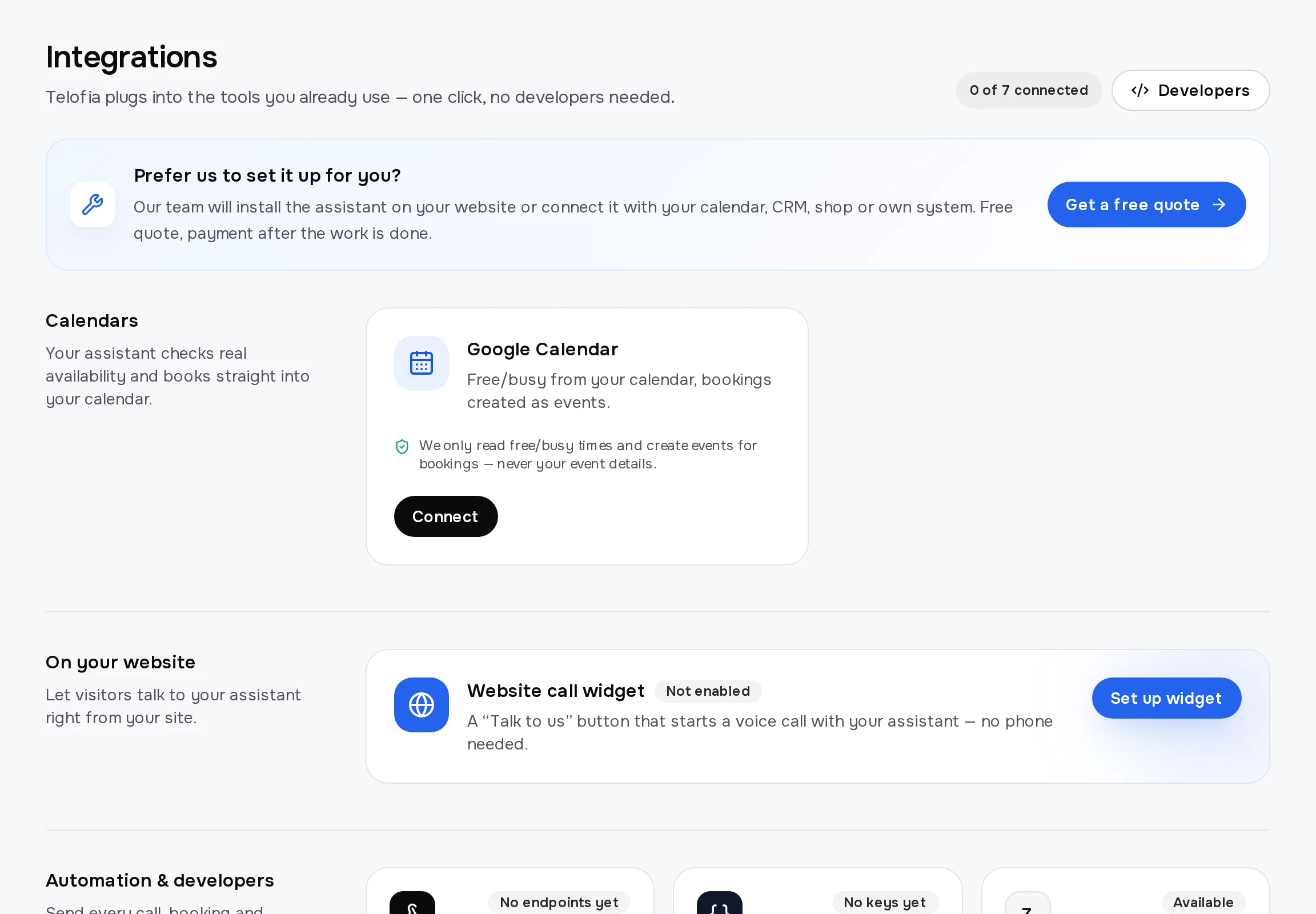
Bookings appear in Appointments and, if connected, in that person's Google Calendar. With an iCal link (Apple iCloud, Outlook, Yahoo), the assistant only reads busy times. The rest of the process, including call forwarding, is explained in how it works.
Try the assistant with the free trial
The quickest way to find out whether it works for your business is to make a few test calls in your browser during the free trial. For example, add a day under Closed days and see how the assistant responds when someone tries to book that day.
Create your account and use the 14-day free trial with 30 minutes included. You don't need a card for the browser test. After that, plans start at £35 a month with yearly billing (excl. VAT); see the details on our pricing page.
Prices are in pounds, and you pay by card through Stripe's secure checkout page. Tax and card-fee questions for your business aren't covered here; check with your bank or accountant.
Frequently asked questions
What if a client always wants the same member of staff?
Always book them into that person's calendar and note the preference on the client's record. If that person is off or fully booked, offer their next free slot. As an alternative, suggest a colleague who does the same service; the client makes the choice.
How do I manage the calendar for part-time staff?
Leave only the days and hours they work open in their calendar and block the rest with recurring events. That way nobody books them outside their hours. Any “don't mind” requests at those times go to whoever is in.
How do I avoid two bookings at the same time with several staff?
Always book into the calendar of the person who'll see the client, and record the real duration of each service. Block days off, breaks and holidays in the calendar. If several people take bookings at once, use a digital calendar that shows busy times as they happen.
What should I do when a client doesn't mind who they see?
Set a fixed rule and write it down: most free time that day, rotation or first free slot. Each rule has pros and cons. What matters is that nobody decides from memory who's available.
Does a virtual receptionist respect each person's days off?
With Telofia, yes: each person's days off are respected. If the requested member of staff is off or fully booked, the assistant offers a colleague or another date.
Can I use the calendars my team already has?
Yes. Each person can use their own Google Calendar or an iCal link, such as one from Apple iCloud, which the assistant reads busy times from. They can also use just Telofia's built-in calendar.
Try Telofia on your own calls
Set up your AI receptionist in about five minutes: 14-day trial with 30 free minutes, no card needed for the browser test.
Prefer to hear it first?
Enter your number and the assistant calls you within seconds, acting as the receptionist of your business.
Also available in: Polski, Deutsch, Español, Français, Italiano, Português, Nederlands